


Generally, Elementor Phone number field in Elementor Form doesn’t support country wise masking for Phone number formatting. So, we will do it manually.
To create a form with a number field in the US phone number format using Elementor, you can follow these steps. This approach utilizes Elementor’s form widget and a bit of custom JavaScript for enforcing the US phone number format (###) ###-####.

Add the following JavaScript code using any code snippet plugin.
jQuery(document).ready(function($) {
    // Change field_9c47410 to the appropriate ID of your Elementor form field
    var inputField = $('#form-field-xxxx');

    // Add event listener for input event
    inputField.on("input", function() {
        // Get the entered value
        var enteredValue = inputField.val();

        // Remove any characters that are not numbers, brackets, or dashes
        var cleanedValue = enteredValue.replace(/[^\d()\-, ]/g, '');

        // Format the value as US phone number
        var formattedValue = cleanedValue.replace(/(\d{3})(\d{3})(\d{4})/, '($1) $2-$3');

        // Update the input field value with the formatted value
        inputField.val(formattedValue);

        // Validate input
        if (cleanedValue.length !== 14) {
            // Display a validation message for invalid length
            inputField[0].setCustomValidity("Phone number must be exactly 14 characters.");
        } else if (!isValidPhoneNumber(cleanedValue)) {
            // Display a validation message for invalid input
            inputField[0].setCustomValidity("Please enter a valid US phone number.");
        } else {
            // Clear any previous validation message
            inputField[0].setCustomValidity("");
        }
    });

    // Add event listener for form submission
    $('form').on('submit', function(event) {
        var inputField = $('#form-field-xxxx');

        // Validate input before submission
        if (!inputField[0].checkValidity()) {
            // Prevent form submission if there's a validation error
            event.preventDefault();
        }
    });
});

// Function to validate US phone number
function isValidPhoneNumber(phoneNumber) {
    var phoneRegex = /^\(\d{3}\) \d{3}-\d{4}$/;
    return phoneRegex.test(phoneNumber);
}
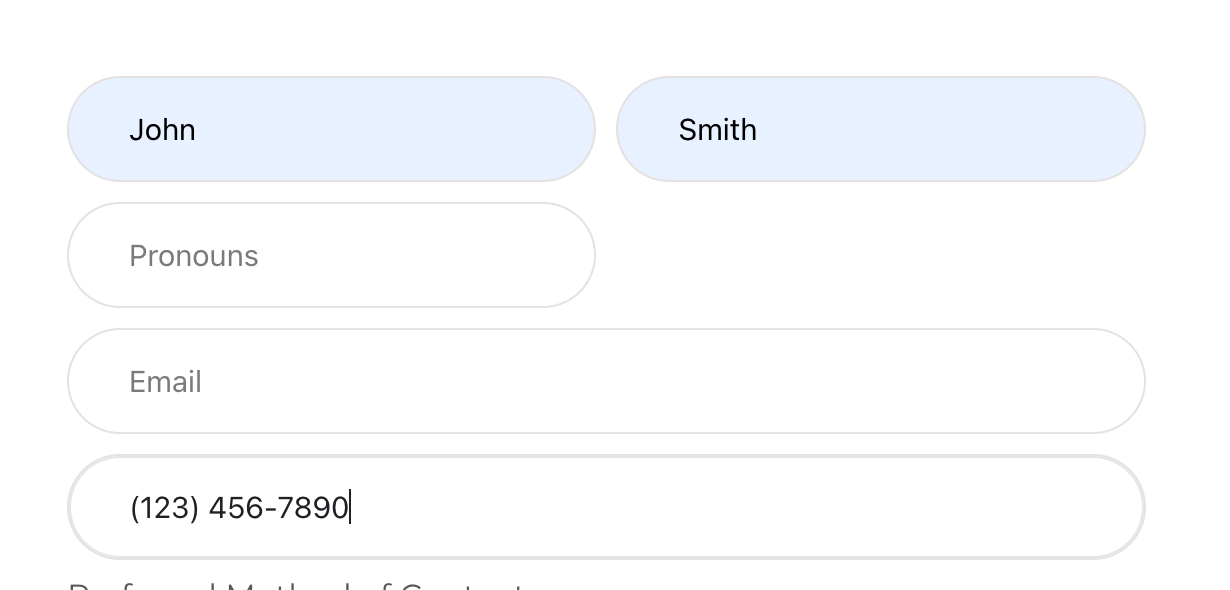
Final Result
After adding the above snippet, this is how it will look
Final Recommendations
- Test the Changes: Ensure that you test these changes on a staging or development version of your site first. This helps to avoid any potential issues on your live website.
- Consider User Experience: While formatting and placeholders can improve user experience, ensure they work seamlessly across different browsers and devices.
This approach should provide a more intuitive and guided experience for users entering their phone numbers during the WooCommerce checkout process.


